
"I forgot we had a lesson today." If you've heard that more than once, reminders will fix it. TeachersFlow sends automatic reminders before every lesson — to both you and the student. For the bigger picture across all alerts, see TeachersFlow Notifications: The Complete Guide.
Here's how to set them up and customize them.
How Reminders Work
TeachersFlow sends a notification before each upcoming lesson. The timing and channel depend on your settings:
- System checks upcoming lessons — looks ahead based on your reminder timing setting
- Sends a notification to the student with lesson details (date, time)
- Sends a notification to you confirming the upcoming lesson
Reminders go out automatically — no action needed from you.
Configuring Reminder Timing
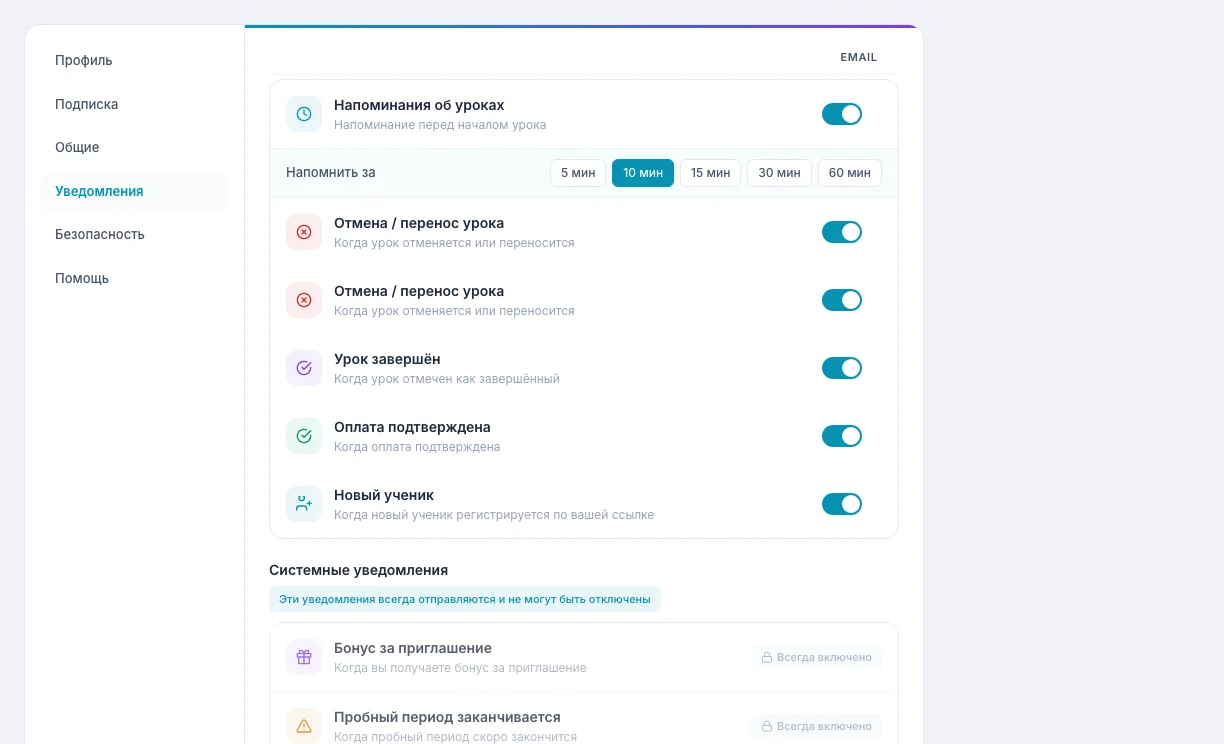
Go to Settings → Notifications to set when reminders fire:
| Option | Best For |
|---|---|
| 5 minutes before | Quick ping right before the lesson |
| 10 minutes before | Default — works for most students |
| 15 minutes before | Students who need extra time to prepare |
| 30 minutes before | Standard — enough time to get ready |
| 60 minutes before | Students who need travel or prep time |
The default is 10 minutes before. You can change it in notification settings.
Notification Channels
TeachersFlow delivers reminders through multiple channels:
In-App Notifications
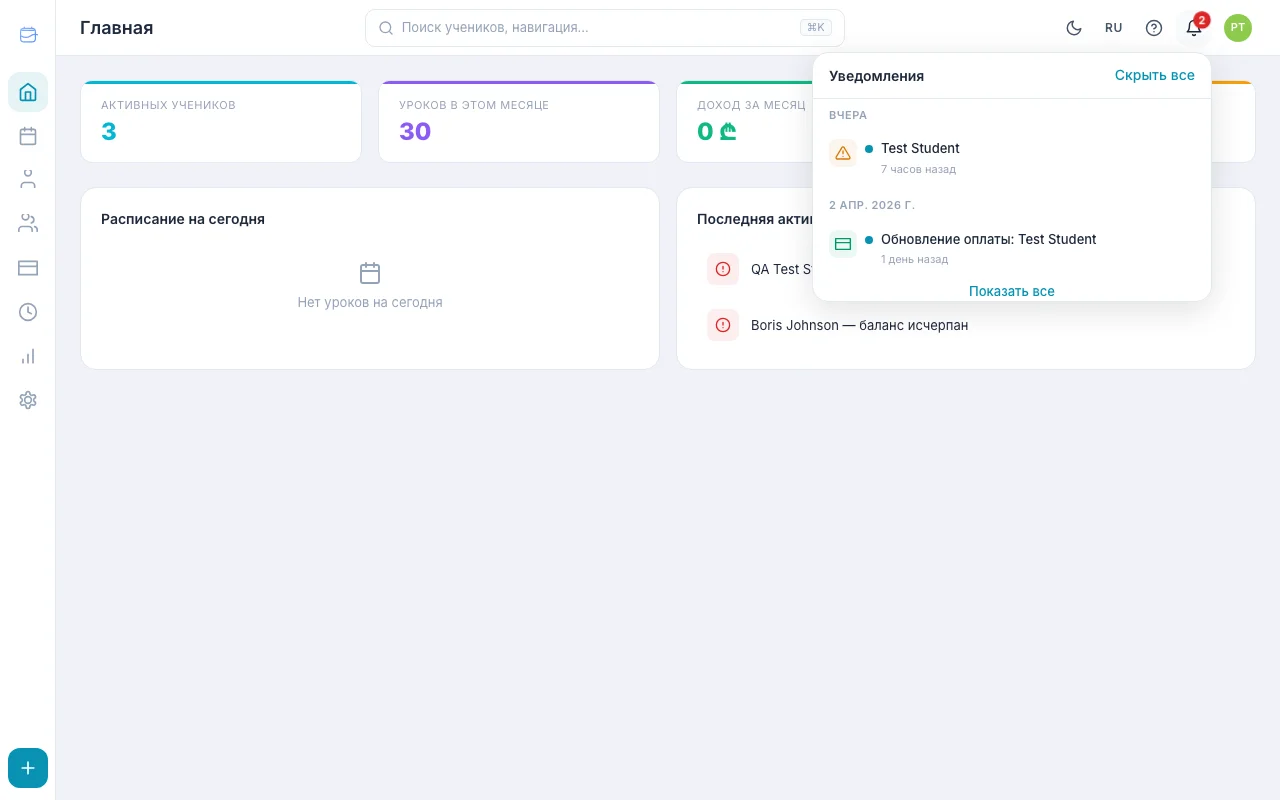
The bell icon in the top bar shows unread notifications. Every reminder appears here. Students see reminders in their portal.
If the student has an email address set, they receive lesson reminders via email. The email includes: - Lesson time - A button to quickly open the app
Per-Type Notification Control
Not every notification type needs to fire. In the notification preferences, you can toggle specific types:
For Students
| Notification Type | Can Be Disabled? |
|---|---|
| Lesson reminder | Yes |
| Schedule changes (cancellation, reschedule) | Yes |
| Payment request | Yes |
| Payment confirmed | Yes |
For Teachers
| Notification Type | Can Be Disabled? |
|---|---|
| Lesson reminder | Yes |
| Student cancellations | Yes |
| Student reschedules | Yes |
| Lesson completion | Yes |
| Payment confirmed | Yes |
| New student | Yes |
This gives you and your students control over what notifications appear, reducing fatigue while keeping the important ones active.
What Students See
When a student receives a lesson reminder, they see:
- Date and time of the upcoming lesson
- In-app notification (bell icon in their portal)
- Email with the lesson time and a button to open the app (if email is set)
The reminder is clean and actionable — no clutter, just the essentials.
Teacher Notifications
You also receive notifications for:
- Upcoming lessons (your own schedule reminder)
- Student cancellations or reschedules
- New payments received
- Low student balances
Your notification preferences are independent of student settings — you can have different timing and channel preferences.
Tips for Effective Reminders
Keep the default 10-minute timing for most students. It works well for the majority. Only customize for edge cases.
Don't disable lesson reminders. Even if a student "always remembers" — one forgotten lesson costs more than a dozen reminder notifications.
Check student registration. Email reminders only work if the student is registered and has an email set — see How to Invite Students to TeachersFlow and Student Portal: Complete Walkthrough. You can see their registration status on their profile page.
Pair reminders with payment automation. Lesson reminders prevent forgotten sessions, automated payment reminders prevent forgotten invoices.
Set It Up
Open TeachersFlow, go to Settings → Notifications, configure your timing, and stop hearing "I forgot."
14 days of full Pro access — no card required.