
TeachersFlow works even if your students never log in — you can manage everything yourself. But when students connect their accounts, they get a personal portal with their schedule, balance, and payment history. Here's how to set it up.
Step 1: Add the Student
Before you can invite a student, you need to add them to your workspace.
- Go to the Students tab
- Click + Add Student
- Enter the student's name
- Set their lesson price and schedule (optional — you can add these later)
- Save
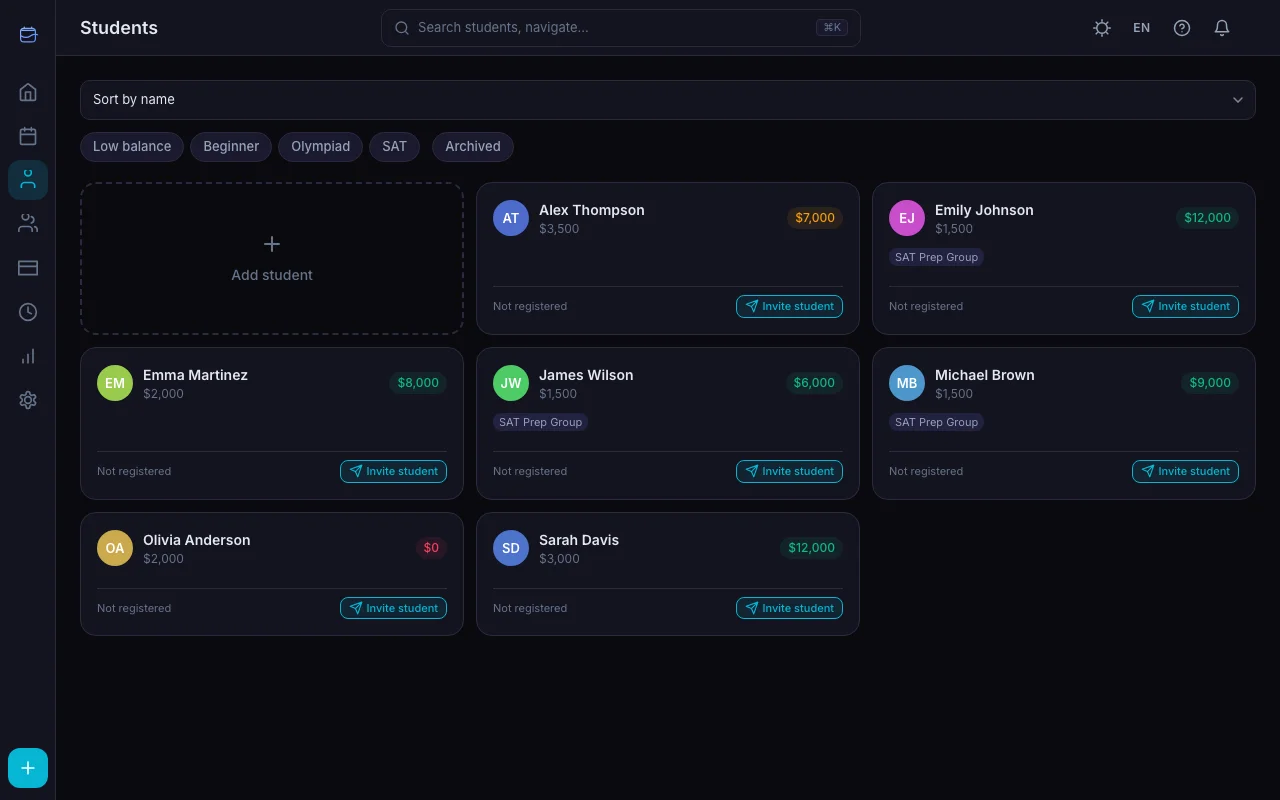
At this point, the student exists in your system but has no account connected. You'll see them marked as "Not registered."
Step 2: Send an Invite Link
Now connect the student record to a real account.
- Find the student in your Students list (or open their profile page)
- Click the Invite button (it only appears for students who aren't registered yet)
- The invite modal opens with a unique link
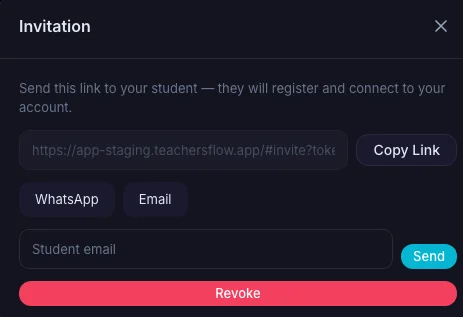
You have several ways to share the link:
- Copy link — paste it into any messenger or chat
- WhatsApp — opens WhatsApp with the link pre-filled
- Email — opens your email client with a pre-written message
- Send email directly — enter the student's email address and TeachersFlow sends a formatted invitation email for you
The invite is valid for 7 days. If it expires, you can create a new one — the old one is automatically revoked.
Step 3: Student Accepts the Invite
Here's what your student sees:
- They open the link and see: "[Your name] invites you to connect as student [Student name]"
- If they already have a TeachersFlow account — they click Accept Invitation
- If they don't have an account — they register first (email + password), then accept
After accepting, the student is redirected to their personal portal.
What the Student Portal Includes
For the full walkthrough, see Student Portal: Complete Walkthrough. Once connected, your student gets access to:
Calendar. A monthly view of all their upcoming and past lessons with you.
Balance and payments. Current balance, full payment history, and the ability to submit a payment directly through the portal.
Settings. Language, theme (light/dark), and notification preferences.
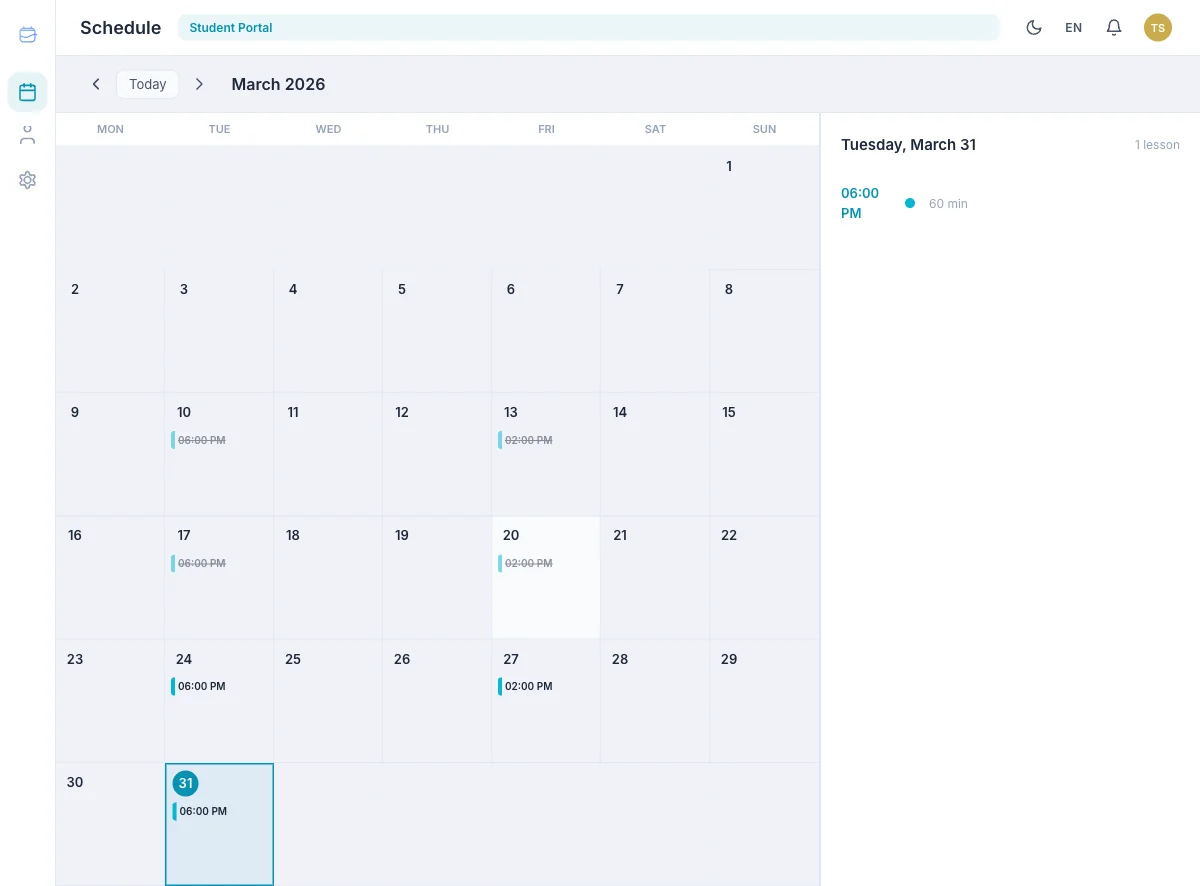
The student can't modify the schedule — only view it. You stay in full control of all scheduling decisions.
What If a Student Doesn't Accept?
No problem. The invite doesn't change anything in your workflow. You continue managing their lessons, payments, and schedule as before. The student record works exactly the same whether or not someone has an account linked.
If the invite expires after 7 days, simply send a new one.
Managing Invite Status
On the student's profile, you can:
- See if they're registered — a badge shows "Registered" or "Not registered"
- Resend — create a new invite (automatically revokes any previous one)
When to Use Invites
Invites are useful when:
- Students want to see their schedule independently — they check the portal instead of messaging you
- You want students to track their own balance — they see how many lessons they've prepaid for and what's remaining (powered by auto-charge)
- Students submit payments themselves — they can log a payment through the portal, which you then confirm
- You want to reduce routine messages — "When's my next lesson?" and "How much do I owe?" are answered automatically. Automated payment reminders handle the rest.
You Don't Have to Invite Everyone
Some tutors prefer managing everything themselves — and that's perfectly fine. TeachersFlow doesn't require students to have accounts. Add students manually, manage their schedules and payments, and never send a single invite.
The student portal is an add-on to your workflow, not a requirement.
Start Inviting
Open TeachersFlow, add your students, and send invite links to those who want their own portal. It takes one click per student.
14 days of full Pro access — no card required.