
Notifications keep your tutoring business running without constant checking. A lesson starts in 30 minutes — you get a reminder. A student submits a payment — you're notified instantly. A student's balance drops to zero — you know about it before the student does.
Here's how TeachersFlow's notification system works and how to set it up.
Two Channels
TeachersFlow delivers notifications through two channels:
| Channel | Always On? | Configurable? |
|---|---|---|
| In-app | Yes | Individual types can be toggled |
| On by default | Global + per type |
In-app notifications are always available — they appear in the bell icon dropdown in the top bar. Email notifications are on by default (opt-out) and can be fine-tuned per notification type.
What You Get Notified About
Lesson Notifications
| Notification | When | Who Gets It |
|---|---|---|
| Lesson reminder | X minutes before lesson starts | You + your student |
| Lesson completed | When a lesson is auto-completed | You |
| Lesson cancelled | When you cancel a lesson | Your student |
| Lesson rescheduled | When you reschedule a lesson | Your student |
The reminder timing is configurable: 5, 10, 15, 30, or 60 minutes before the lesson. Default is 10 minutes — see Lesson Reminders Setup for the deeper guide. The cancel/reschedule flow is documented in How to Reschedule or Cancel a Lesson.
Payment Notifications
| Notification | When | Who Gets It |
|---|---|---|
| Payment confirmed | Student marks a payment as paid | You |
| Low balance | Student's balance drops to zero or below | You |
For more on the payment flow itself, see How to Track Payments, How to Send a Payment Request, and How to Automate Payment Reminders.
Student Notifications
| Notification | When | Who Gets It |
|---|---|---|
| New student | A student accepts your invite and registers | You |
System Notifications
| Notification | When | Who Gets It |
|---|---|---|
| Trial expiring | 3 days and 1 day before trial ends | You |
| Trial expired | When trial period ends | You |
| Referral reward | When a referral is confirmed | You |
| Subscription expiring soon | 3 days before current period ends | You |
| Subscription activated | On first payment or plan change | You |
| Subscription renewed | On automatic renewal | You |
| Subscription cancelled | When subscription is cancelled | You |
| Payment failed | When subscription payment fails | You |
The Bell Icon
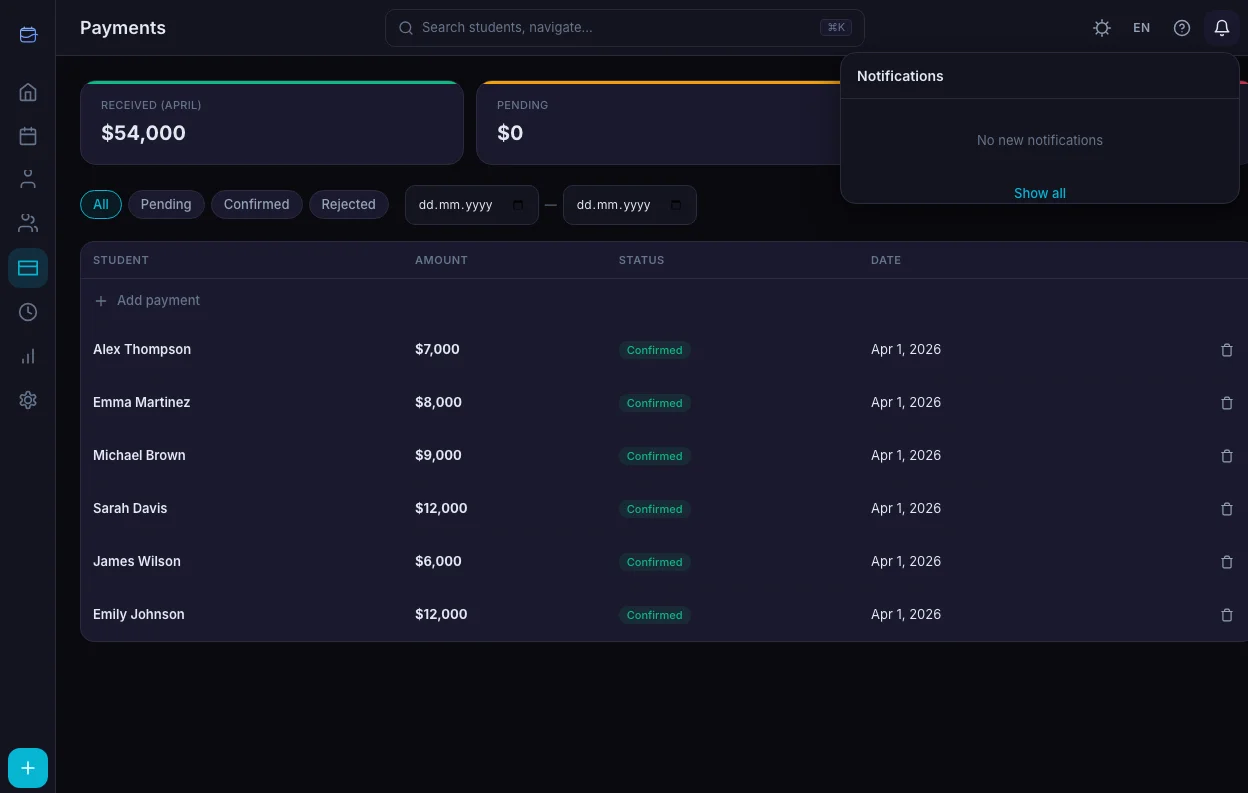
Click the bell icon in the top bar to see your latest notifications. You'll find:
- A badge showing unread count (with a pulse animation for new ones)
- A dropdown with the 15 most recent notifications
- Grouped by date — Today, Yesterday, or specific dates
- Color-coded icons by type: green for payments, purple for lessons, blue for students, red for cancellations
- Dismiss button on each notification
- Show all link to the full notifications page
The Notifications Page
For a complete history, go to the Notifications page (click "Show all" in the dropdown, or navigate via settings).
Features: - Filters: All, Unread, Payments, Lessons, Students, System - Dismiss all — clear everything at once - Load more — paginated history (20 at a time) - Same grouping and styling as the dropdown, but with full history
Customizing Your Notifications
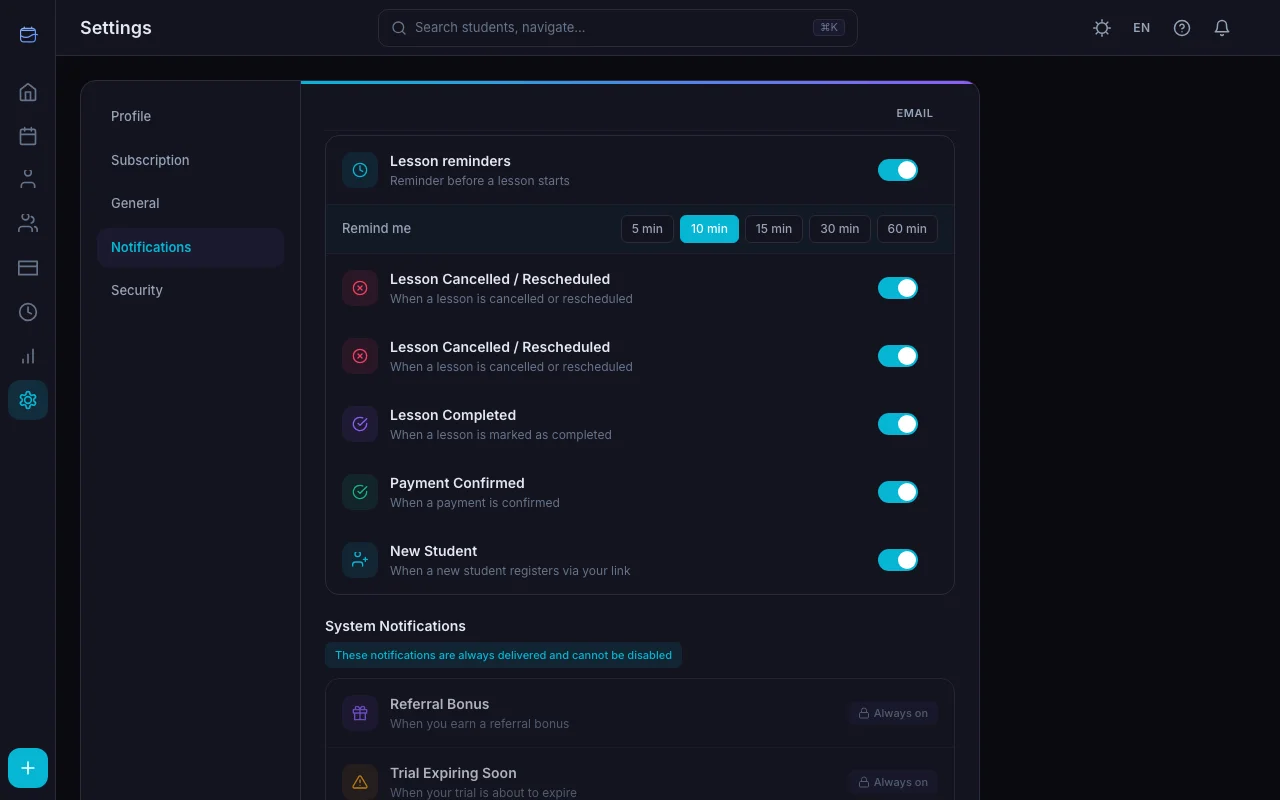
Go to Settings → Notifications tab.
Per-Type Toggles
Each notification category has an on/off toggle:
Lessons: - Lesson reminders (upcoming lesson alerts) - Lesson cancellations - Lesson rescheduling - Lesson completions
Payments: - Payment confirmations
Students: - New student registrations
Subscription: - Trial status updates - Subscription updates
Always-On Notifications
Some notifications can't be turned off (they're too important): - Referral reward — you need to know when a referral succeeds - Trial expiring — so you don't lose access unexpectedly - Billing payment failed — so your subscription doesn't lapse
Reminder Timing
Choose when lesson reminders fire: 5, 10, 15, 30, or 60 minutes before the lesson. Pick what works for your workflow — 60 minutes gives you time to prepare, 10 minutes (the default) is a quick heads-up.
Global Switch
- Email notifications — master toggle for all email notifications
Turn off the global switch to silence all email notifications without touching individual preferences.
What Your Students Receive
Students with portal access get their own notifications:
| Notification | In-App | |
|---|---|---|
| Lesson reminder | ✅ | ✅ |
| Lesson cancelled | ✅ | ✅ |
| Lesson rescheduled | ✅ | ✅ |
| Invite email | — | ✅ |
Students can also customize their preferences in their portal settings — enabling or disabling lesson reminders and schedule changes. For the full student-side experience, see Student Portal: Complete Walkthrough.
Email Unsubscribe
Every notification email includes a one-click unsubscribe link. Students and teachers can opt out of email notifications directly from any email — no login required. It uses a secure, signed link.
Setup Guide
- Open TeachersFlow → Settings → Notifications
- Email notifications are on by default — adjust if needed
- Set your reminder timing (default is 10 minutes)
- Toggle individual notification types on or off
- Invite students to the portal — they'll start receiving their own reminders automatically
14 days of full Pro access — no card required.