

Teaching groups is different from teaching individuals. You need to track attendance per student, handle pricing for the whole group, manage membership changes, and schedule one slot for many people. Spreadsheets and calendars weren't built for this.
TeachersFlow has native group support. Here's everything you need to know.
Creating a Group
Go to Groups → click Add group. You'll see a two-panel form:
Left panel (Settings & student selection): - Group name — "Conversational English B2", "Saturday Chess Club", whatever makes sense - Lesson price — price per lesson per student - Search and select students from your list - Already in another group? You'll see a notice: "In: [Group Name]"
Right panel (Members): - List of selected students - Remove a member from the list
Click Create group — and you're done.
Important: Each student can only belong to one group at a time. If you need a student in multiple groups, that's a current limitation to be aware of.
The Group Page
After creating a group, you'll see its detail page with:
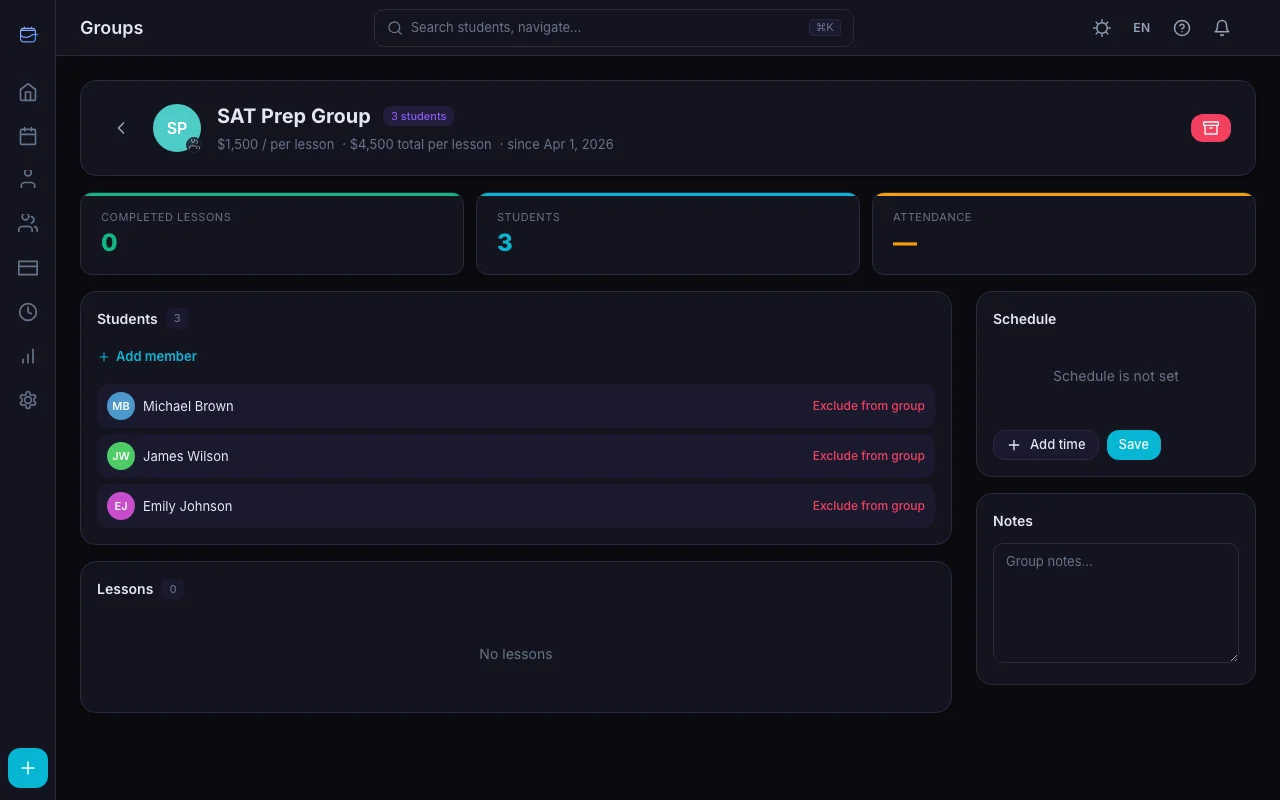
Header: - Group name (editable) - Member count - Lesson price — e.g. "$10 / per lesson · $40 total per lesson" (for 4 students) - Creation date
KPI cards: - Completed lessons — total group lessons conducted - Students — current member count
Main sections:
Students
Your group members list. From here you can: - Click a student to view their profile - Add member — search and add students - Exclude from group — remove a student (their future group lessons are cancelled)
Lessons
Chronological history of all group lessons, grouped by month. Each entry shows date, time, and status. Click to view or edit lesson details.
Schedule (sidebar)
The same Schedule Editor as for individual students — but at the group level. Set weekly time slots, and group lessons generate automatically.
Notes (sidebar)
Free-text notes about the group — topics, goals, anything you want to remember.
Scheduling Group Lessons
You have two options:
Option 1: Weekly Schedule (Recommended)
On the group page → Schedule block in the sidebar → Add time → pick a day, time, and duration → Save. The mechanics are the same as in How to Set Up Your Weekly Schedule and Recurring Lessons Setup.
The system generates planned group lessons automatically, every week. Same as individual students, but for the whole group at once.
Option 2: One-Off Lessons
In the Schedule section of the main navigation → Add lesson → switch to Group → select the group → pick date and time → save.
The lesson is created for all current group members.
Pricing and Payments
How Group Pricing Works
Groups have a single lesson price set at the group level. When you set it:
- All group members' individual lesson prices update to match the group price
- Auto-charge uses this price after each completed lesson
- The group page shows both per-student and total price: "$10 / per lesson · $40 total per lesson"
Recording Group Payments
Go to Payments → Add payment → switch to Group → select the group → enter number of lessons → Save.
The payment applies to every student in the group. Each student's balance increases by the lesson price × number of lessons.
Auto-Charge for Groups
When a group lesson is completed (automatically via schedule or manually):
- Each participant's balance is checked
- If a participant has auto-charge enabled → the lesson price is deducted from their balance
- A "Lesson" entry appears in each participant's individual balance history
Each student's balance is managed independently, even in a group. For the bigger picture on payments, see How to Track Payments in TeachersFlow.
Adding and Removing Members
Adding a Member
On the group page → Students section → Add member → search for a student → click to add.
The student's lesson price updates to match the group price, and their schedule becomes "set by the group" (read-only on their individual page).
Removing a Member
Click Exclude from group next to any member. The student: - Leaves the group - Gets their individual schedule back (blank) - Keeps their current balance and lesson history - Is removed from future group lessons
Archiving a Group
When a class ends or a group disbands:
- Click the archive icon on the group page
- A dialog lets you choose which students to archive along with the group
- Unselected students remain active — they just leave the group
- All future group lessons are cancelled automatically
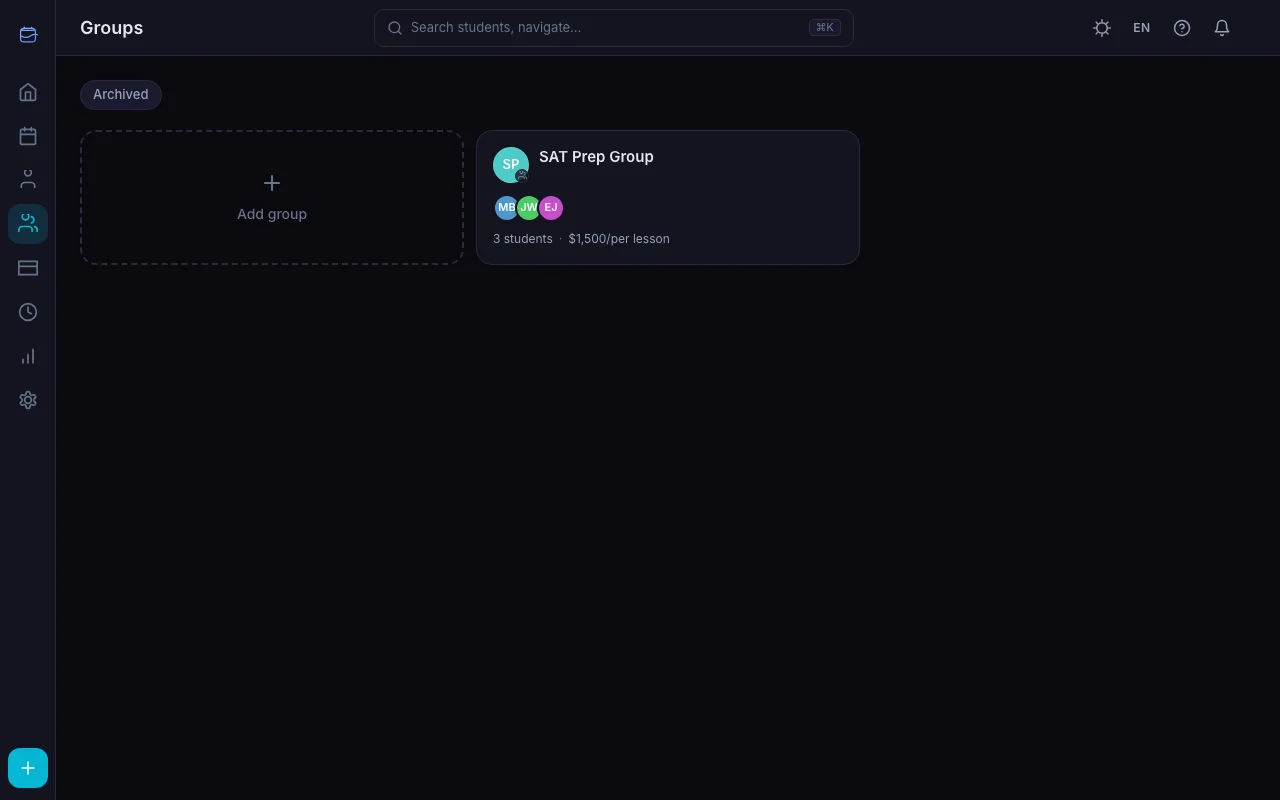
Need to bring it back? Click Restore on the archived group page.
Group Schedule + Individual Schedule
Here's how schedules interact:
- Group members inherit the group's schedule. Their individual schedule tab shows "Schedule is set by the group" with a link to the group.
- Removing a student from a group restores their individual schedule (empty by default).
- You can still create one-off individual lessons for a group member — the group schedule doesn't block that.
Quick Setup
- Open TeachersFlow
- Go to Groups → Add group
- Name the group, set the price, add members
- Set the weekly schedule
- Done — group lessons appear in your calendar automatically
14 days of full Pro access — no card required.