

Creating the same lesson manually every Monday at 5 PM gets old fast. Recurring lessons solve this — set the pattern once, and TeachersFlow generates every future lesson automatically.
Here's how it works and what makes it different from a simple "repeat event."
How Recurring Lessons Work
TeachersFlow doesn't copy-paste calendar events. Instead, it uses a smarter model:
- You define a weekly schedule — one or more time slots per student or group (e.g., Monday 17:00, 60 min).
- The system generates planned lessons — for each upcoming week, the schedule produces "Planned" items in your calendar.
- Each lesson in the series can be cancelled or rescheduled.
This means your recurring lessons aren't rigid. Each one can be adjusted without breaking the pattern.
Setting Up a Recurring Lesson
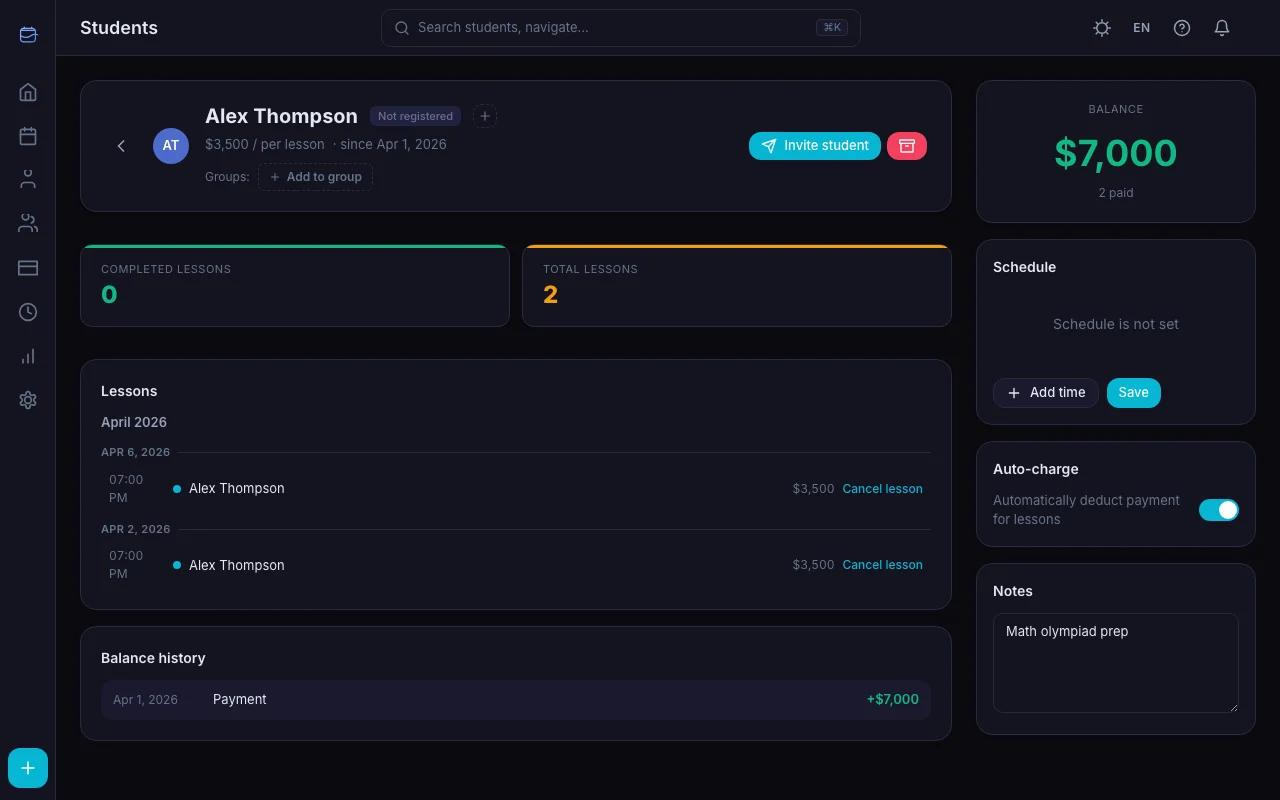
- Go to Students → open a student → Schedule tab
- Click Add slot
- Choose the day of week, start time, and duration (30/45/60/90/120 min)
- Add more slots if the student comes multiple times a week
- Click Save
That's it. Lessons start appearing in your calendar from the next occurrence onward.
What "Planned" Means
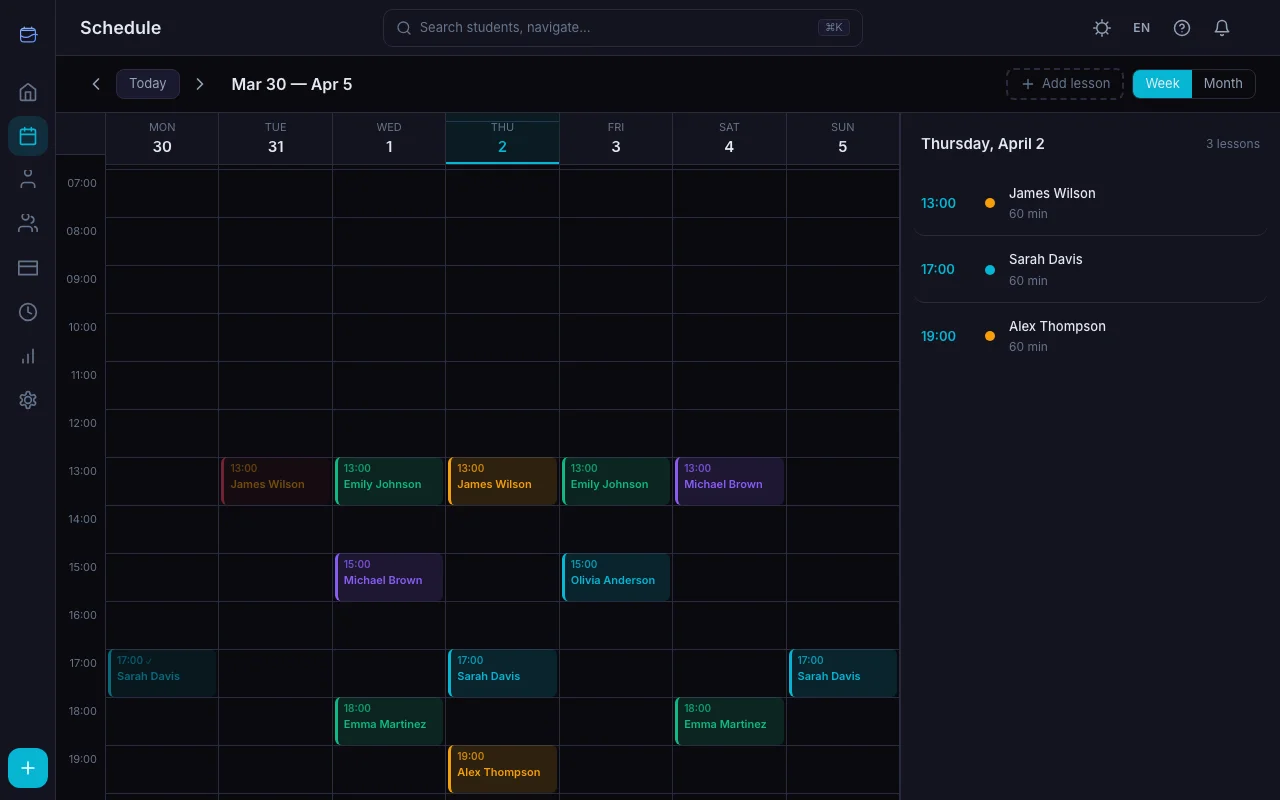
Planned lessons appear in your calendar with the status "Planned" (or «По расписанию» in Russian). They look like regular lessons but lighter — indicating they were auto-generated from the schedule.
When you click a planned lesson, you can: - Cancel it → it's marked as cancelled, with an option to charge the student's balance - Reschedule it → move it to a different date/time
The schedule keeps running regardless of what you do with individual lessons. For weekly slot setup specifically, see How to Set Up Your Weekly Schedule.
Handling Exceptions
Real life doesn't follow a pattern. Here's how TeachersFlow handles the exceptions:
Student Is Sick / On Vacation
Cancel that specific planned lesson. Next week's lesson still appears as usual. No need to pause or restart the schedule.
One-Time Reschedule
Click the planned lesson → Reschedule → pick a new date and time. The rescheduled lesson moves, but next week reverts to the original pattern.
Permanent Schedule Change
Need to move from Monday to Wednesday permanently? Edit the schedule:
- Go to the student's Schedule tab
- Change the day/time of the existing slot (or delete it and add a new one)
- Save
Future planned lessons now follow the new pattern.
Holiday Week
Cancel the planned lessons for that week. The following week regenerates normally.
Automatic Completion
When a planned lesson's time passes, TeachersFlow automatically:
- Creates a real lesson with status Completed
- Deducts the lesson price from the student's balance (if auto-charge is enabled)
- Records the balance change in the student's history
You don't need to mark lessons as done — it happens automatically. If you prefer manual control, disable auto-charge for that student.
Recurring Lessons for Groups
Groups work the same way — full guide in Group Lessons: A Complete Guide. Open a group → Schedule tab → add weekly slots → save.
Every member of the group gets the lesson auto-generated. When a student joins the group, they inherit the group schedule. When they leave, their individual schedule resets.
Conflict Detection
TeachersFlow checks for overlaps when you save a schedule:
- If a new time slot overlaps with another student's lesson → you get a warning
- If a one-off lesson conflicts with a planned lesson → warning
- Cancelled lessons don't count as conflicts
This means no more double bookings, even with complex schedules.
Calendar Views
Your recurring lessons appear in both views:
Month view — each day shows colored pills with time and student name (up to three per day, with a "+N" counter for the rest). Click a day to see the full list: planned, completed, cancelled, all side by side.
Week view — a full timeline where planned lessons appear as blocks. You can drag and drop planned lessons to reschedule them directly.
Tips
Start with regular students only. If a student comes sporadically, just create one-off lessons manually. Recurring schedules work best for consistent patterns.
Use the week view for overview. After setting up all your students' schedules, the week view shows your entire workload at a glance.
Set It Up
Open TeachersFlow, go to any student's profile, and add their weekly schedule. Takes 30 seconds per student.
14 days of full Pro access — no card required.