

Most tutors have a predictable rhythm: Maria is Monday at 5 PM, Alex is Wednesday and Friday at 3 PM, the Saturday group meets at 10 AM. Setting this up once means your calendar fills itself — week after week, without manual work.
Here's how to build your weekly schedule in TeachersFlow.
How the Schedule Works
TeachersFlow uses a simple but powerful model:
- You define weekly time slots for each student (or group) — day of the week, start time, duration.
- The system generates planned lessons automatically based on those slots.
- Planned lessons appear in your calendar with "Scheduled" status. When lesson time comes, the system automatically marks them as completed. You can cancel or reschedule in advance if needed.
Think of it as a template that repeats every week, with full control over each individual lesson.
Step 1: Open the Schedule Editor
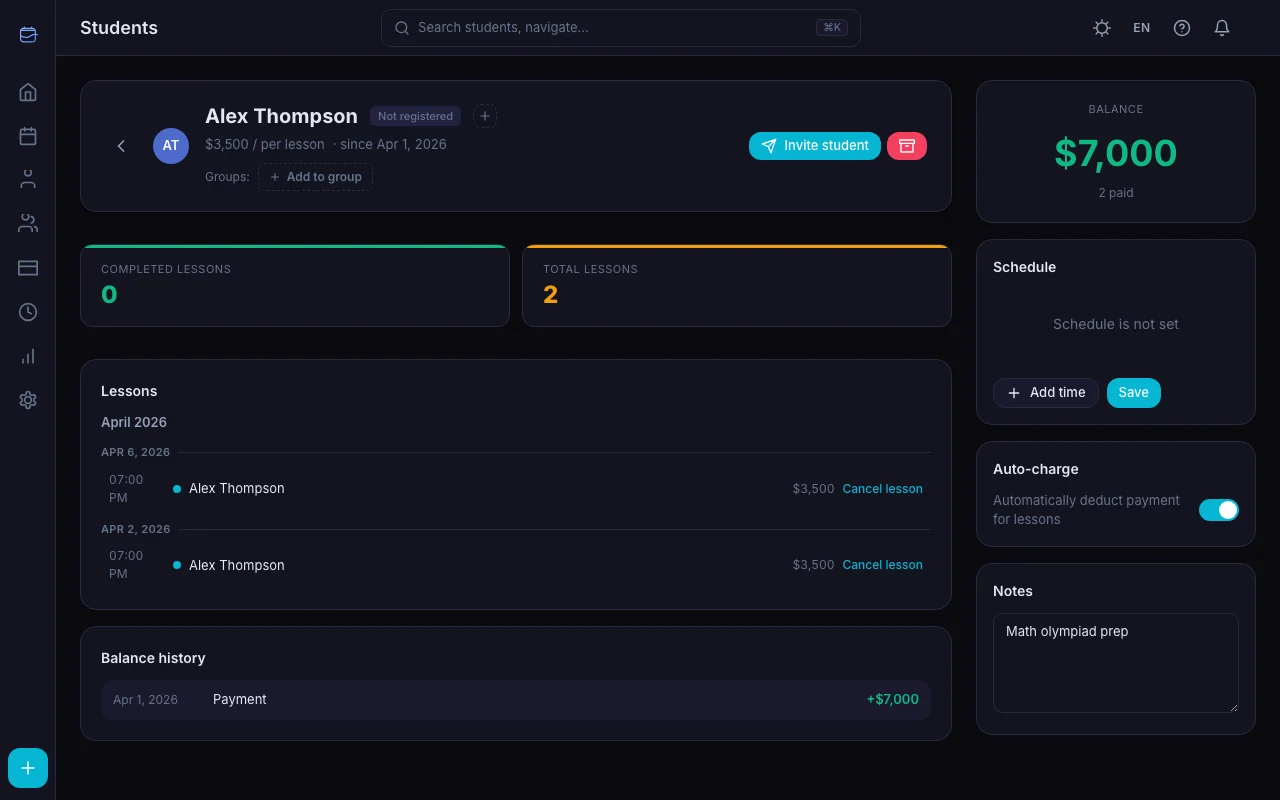
Navigate to Students → click on a student → select the Schedule tab in the side panel.
You'll see either: - An empty state: "Schedule is not set" with an Add time button - Existing time slots if you've already set them up
Step 2: Add Your First Time Slot
Click Add time. A new row appears with three fields:
| Field | What it does | Default |
|---|---|---|
| Day | Which day of the week | Tuesday |
| Time | When the lesson starts | 10:00 |
| Duration | How long the lesson lasts | 60 min |
Pick the day from the dropdown (Monday through Sunday), set the start time, and choose a duration: 30, 45, 60, 90, or 120 minutes.
Step 3: Add More Slots
Click Add time again for each additional recurring lesson. If a student comes twice a week — add two slots. Three times — three slots.
Each slot is independent. Monday can be 60 minutes, Thursday can be 45 minutes.
Step 4: Save
Click Save. Done. The schedule is now active, and planned lessons will start appearing in your calendar.
TeachersFlow checks for conflicts when you save — if a new slot overlaps with another student's lesson at the same time, you'll get a warning immediately.
Step 5: See the Results in Your Calendar
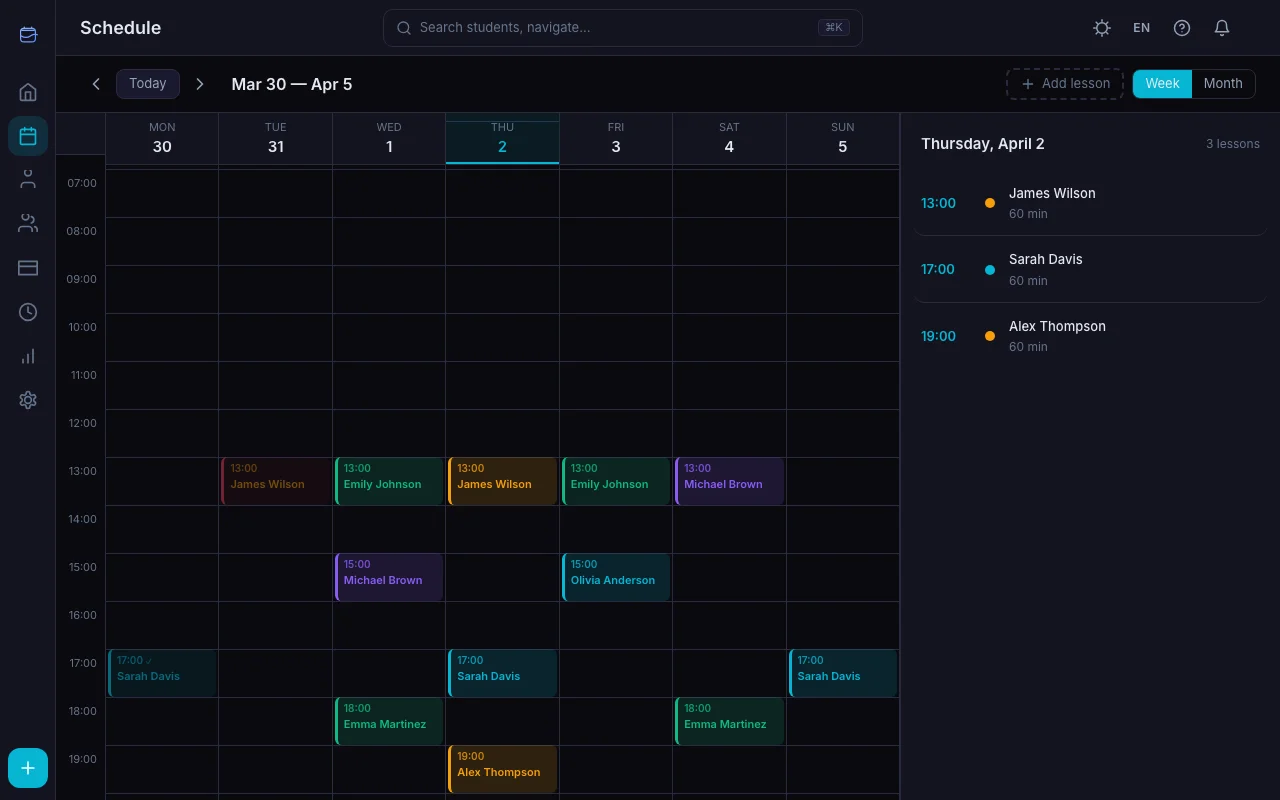
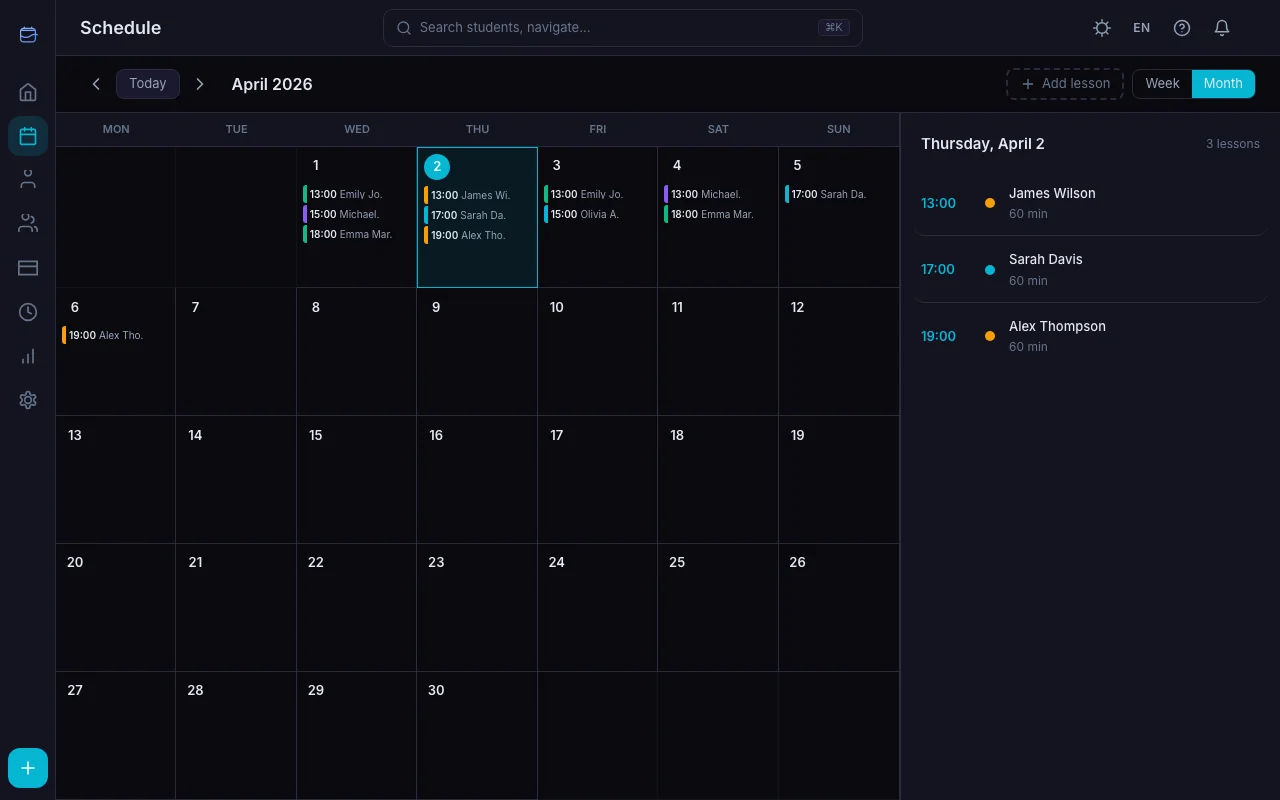
Switch to the Schedule section (main navigation). Your calendar now shows planned lessons as colored blocks — each student in their own color.
Month view shows lesson markers on each day. Click any day to see the full list in the side panel.
Week view shows a timeline from morning to night, with lesson blocks positioned at the exact times. You can even drag lessons to reschedule them directly on the timeline.
Planned lessons display with "Scheduled" status — they work exactly like manually created lessons.
Working with Planned Lessons
Planned lessons aren't set in stone. You can:
- Cancel — mark it as cancelled (with or without charging the student's balance)
- Reschedule — move it to a different date or time
- Skip — if a student is on vacation, cancel that specific occurrence without affecting future weeks
The schedule template keeps running regardless. Cancel one Wednesday lesson and next Wednesday still appears as planned. For more on how the recurring engine works, see Recurring Lessons: Setup Guide.
Groups Work the Same Way
Group schedules work identically. Go to Groups → open a group → Schedule tab → add time slots. The full workflow lives in Group Lessons: A Complete Guide.
When a student belongs to a group, their individual schedule tab shows "Schedule is set by the group" with a link to the group. The schedule is managed at the group level, not per student.
Tips for a Clean Schedule
Start with your fixed students. Add schedule slots for students who come regularly. For occasional students, just create one-off lessons manually.
Use the conflict checker. If you accidentally overlap two students at the same time, TeachersFlow will warn you. No more double bookings.
Adjust durations per slot. A student can have a 90-minute lesson on Monday and a 60-minute review session on Thursday. Each slot has its own duration.
Check the week view. After setting up all your students, switch to the week view. You'll see your entire workload at a glance — gaps, busy days, and whether you have room for another student. Avoid the most common pitfalls with 5 Scheduling Mistakes Tutors Make.
Set It Up Now
Open TeachersFlow, go to any student, and add their weekly schedule. It takes under a minute per student — and saves hours over the semester.
14 days of full Pro access — no card required.