
Plans change. A student is sick, you have a conflict, the holiday calendar shifts. TeachersFlow makes rescheduling and cancelling straightforward — whether it's a one-off lesson or part of a recurring schedule.
Rescheduling a Lesson
One-Off Lessons
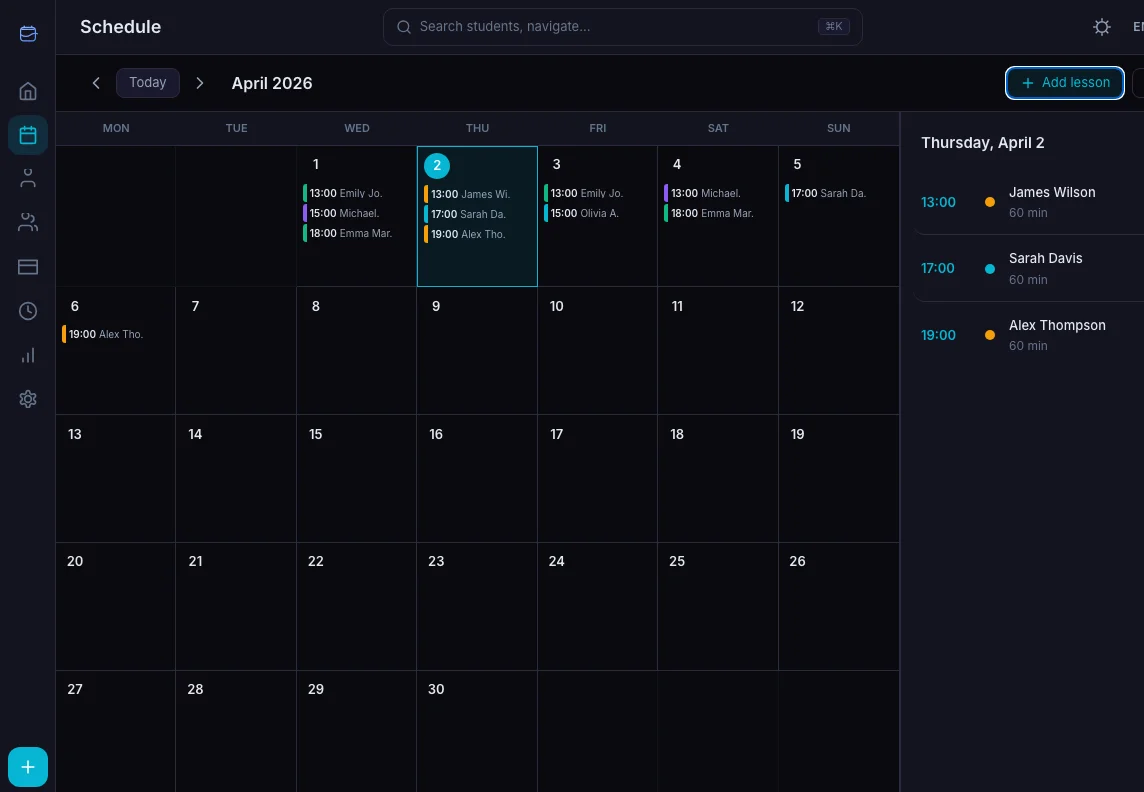
- Click the lesson in your calendar
- Pick a new date and time
- Save
The lesson moves to the new slot. The student sees the updated time in their portal and receives a notification about the change.
Recurring Lessons (Single Occurrence)
For recurring lessons, rescheduling works per occurrence:
- Click the specific planned lesson you want to move
- Pick the new date/time
- Save
Only this one occurrence moves. Next week, the lesson returns to the original recurring pattern. The schedule template stays unchanged.
Permanent Schedule Change
If a student needs to permanently move from Monday to Wednesday:
- Go to the student profile → Schedule tab
- Edit or delete the Monday slot
- Add a new Wednesday slot
- Save
All future planned lessons now follow the new pattern.
Cancelling a Lesson
Basic Cancellation
- Click the lesson in your calendar
- Click Cancel
- Choose whether to charge the student's balance
- Confirm
The lesson is marked as cancelled. Depending on your choice, the student's balance is either deducted (late cancellation fee) or left unchanged (timely cancellation).
When to Charge for Cancellation
Use this as a guide:
| Scenario | Charge? |
|---|---|
| Student cancels 24+ hours ahead | No |
| Student cancels less than 24 hours ahead | Yes (your policy) |
| Student no-shows | Yes |
| You cancel (your conflict) | No |
| Mutual agreement (holiday week) | No |
The charge amount is the student's lesson price — the same amount auto-charge would deduct for a completed lesson. For the bigger picture on cancellation policy, read Stop Losing Money on Lesson Cancellations.
Cancelling a Recurring Lesson Occurrence
Cancelling one occurrence of a recurring lesson doesn't affect the schedule:
- Click the planned lesson
- Cancel it (with or without charge)
- Next week's lesson generates as usual
The recurring pattern continues uninterrupted. You're only cancelling this single occurrence.
What Students See
When you reschedule or cancel a lesson:
- The student receives a notification (in-app or email depending on their settings)
- Their portal schedule updates immediately
- If charged, the balance change appears in their payment history
Students don't need to take any action — the change is already applied.
Calendar After Changes
Your calendar reflects all changes immediately:
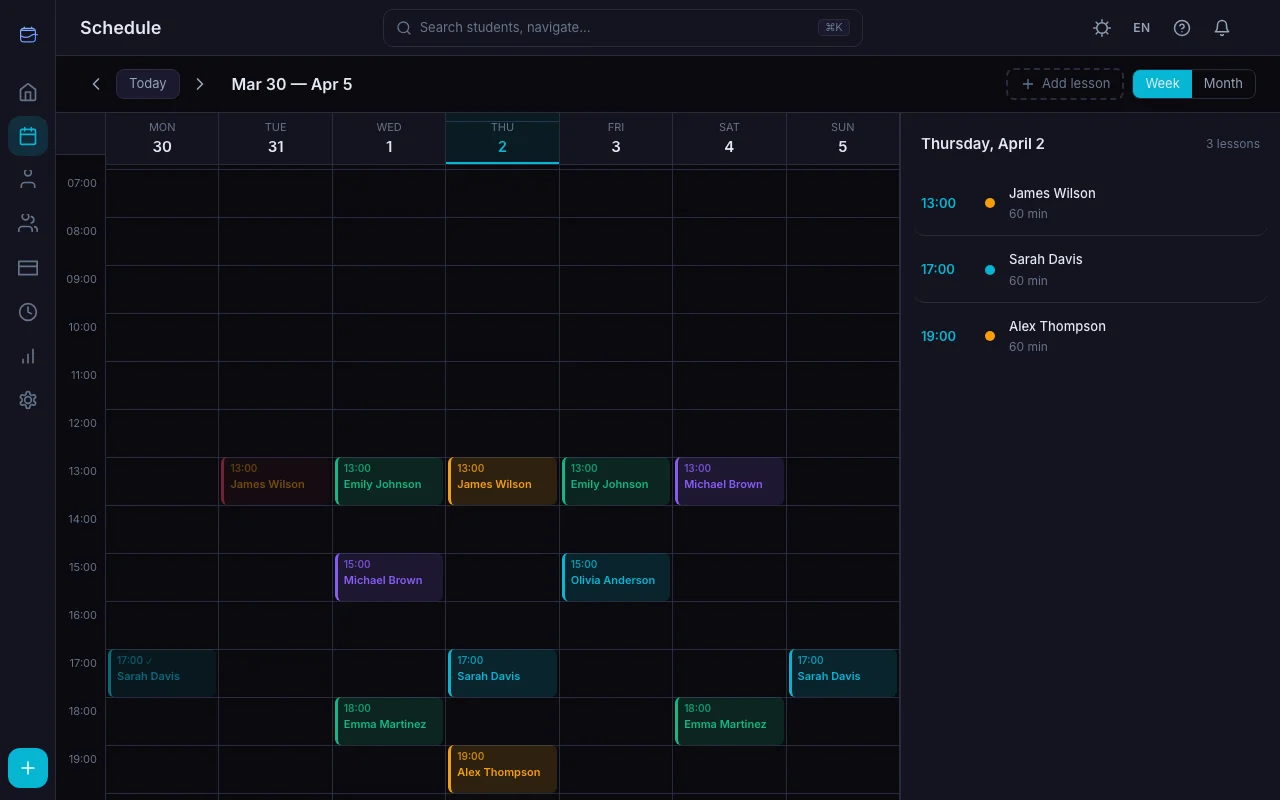
- Rescheduled lessons appear at the new time with the correct details
- Cancelled lessons show with a cancelled status (strikethrough and muted color)
- Recurring lessons continue generating at the original times for future weeks
In the week view, you can also drag and drop lessons to reschedule them visually.
Handling Multiple Cancellations
Holiday Week
If you need to cancel an entire week (vacation, national holiday):
- Go to your calendar for that week
- Cancel each planned lesson individually
- Choose "no charge" for holiday cancellations
Next week's lessons generate normally.
Student Taking a Break
If a student is pausing for a few weeks:
- Cancel their planned lessons for those weeks
- The recurring schedule stays active — lessons resume when the weeks pass
For longer breaks (months), consider removing the schedule slots and re-adding them when the student returns. Or archive the student temporarily.
Conflict Detection
TeachersFlow warns you about conflicts when rescheduling:
- If the new time overlaps with another student's lesson → warning
- If the new time is outside your configured working hours → warning
- Cancelled lessons don't create conflicts
You can override warnings if needed, but they help prevent double bookings.
Tips
Use the week view for drag-and-drop rescheduling. It's faster than the dialog for simple time moves.
Always choose "charge" for true no-shows. This protects your income and reinforces your cancellation policy.
Don't delete — cancel. Deleted lessons disappear from history. Cancelled lessons stay in your records for tracking and analytics.
Get Started
Open TeachersFlow and try rescheduling a lesson. Click → Reschedule → pick a time → done.
14 days of full Pro access — no card required.