
Google Calendar is a fantastic tool. Millions of people use it daily, and many tutors start there. But at some point you realize that a general-purpose calendar wasn't built for running a tutoring business.
Let's compare what Google Calendar offers against what TeachersFlow was designed to do — feature by feature, honestly.
The Core Difference
Google Calendar is a scheduling tool. It helps you put events on a timeline.
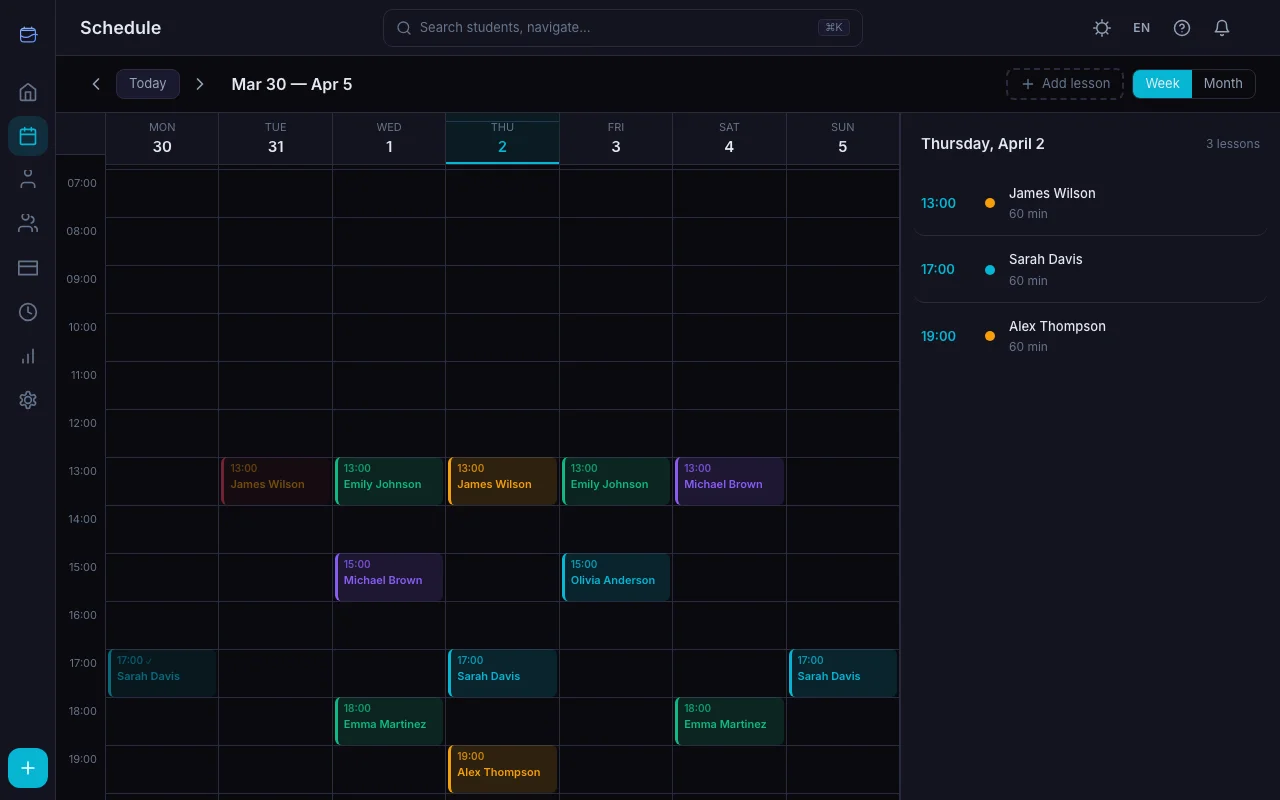
TeachersFlow is a tutor CRM. It handles scheduling, but also student management, payment tracking, analytics, student portals, and automated workflows — everything a tutor needs in one place.
Here's what that looks like in practice.
Feature Comparison
| Feature | Google Calendar | TeachersFlow |
|---|---|---|
| Calendar view | ✅ Day, week, month, year | ✅ Month + week |
| Create lessons | ✅ (as generic events) | ✅ (linked to students, with status tracking) |
| Recurring events | ✅ Basic repeats | ✅ Recurring lesson series with per-lesson control |
| Student profiles | ❌ | ✅ Name, price, notes, balance, tags |
| Payment tracking | ❌ | ✅ Full payment history per student |
| Auto-charge | ❌ | ✅ Automatic balance deduction after lessons |
| Student portal | ❌ | ✅ Students see their schedule and pay through their own portal |
| Revenue analytics | ❌ | ✅ Income, forecasts, cancellation rates |
| Group lessons | ❌ (workaround: invite multiple) | ✅ Native groups with individual balances |
| Lesson statuses | ❌ | ✅ Planned, completed, cancelled |
| Charge on cancel | ❌ | ✅ You decide per cancellation — charge or not |
| Notifications to students | ❌ (email reminders only) | ✅ In-app + email, lesson reminders and payment requests |
| Conflict detection | Partial (visual overlap) | ✅ Automatic warnings |
| Multi-currency | ❌ | ✅ 16 currencies |
| Dark mode | ✅ | ✅ |
| Price | Free | Free plan; Starter $4/mo; Pro $8/mo |
Where Google Calendar Works Fine
Let's be fair — Google Calendar handles some things well enough:
You have 1–3 students. With just a few students, you can still keep everything in your head, and their schedule fits neatly into a regular calendar.
You don't track payments. If you get paid in cash right after each lesson and never think about balances, you don't need payment tracking.
You just need a time grid. If all you want is to see what's happening today at 3 PM, Google Calendar does that perfectly.
Where Google Calendar Falls Short
"Which student owes me money?" Google Calendar has no concept of payments, balances, or invoices. You need a separate spreadsheet — and the discipline to maintain it. See How to Track Payments in TeachersFlow.
"How much did I earn this month?" You'd have to count events manually, multiply by different rates, and subtract cancellations. In TeachersFlow, it's one glance at the dashboard — see Revenue Analytics in TeachersFlow.
"This student cancelled — should I charge them?" In Google Calendar, you just delete the event. In TeachersFlow, you decide per cancellation whether to charge the student's balance or not — full mechanics in How to Reschedule or Cancel a Lesson and Stop Losing Money on Lesson Cancellations. The student immediately gets a notification with the result.
"I teach groups on Saturdays." Google Calendar lets you invite people to events, but it doesn't track individual balances or group-specific pricing. TeachersFlow's group features were built for exactly this.
The Hidden Cost of "Free"
Google Calendar is free. So is TeachersFlow — the Free plan covers up to 5 students.
But when your business grows beyond 5 students, the real cost isn't the subscription. It's the time you spend:
- Hunting through a spreadsheet for who paid and who didn't
- Answering messages like "when is my next lesson?"
- Manually counting your income at the end of the month
- Trying to remember cancellation conversations
If you value your time at $15/hour, spending just 30 minutes a week on admin tasks that TeachersFlow automates costs you $30/month — far more than the $4/month Starter plan.
Who Should Switch
Switch to TeachersFlow if: - You have 4+ students - You track payments or balances - You want students to see their own schedule - You teach groups - You want to understand your income trends
Stay with Google Calendar if: - You have 1–3 students - You don't track payments
Try It Side by Side
You don't have to choose immediately. Sign up for TeachersFlow, add your students, and use both for a week. Most tutors find they stop opening Google Calendar within days. New here? Start with Get Started with TeachersFlow in 5 Minutes. If you're coming from spreadsheets, also see TeachersFlow vs Excel.
14 days of full Pro access. No card required.